
Upload a Document
To upload a document or other file to a Member Profile:
-
Select Members from the top navigation bar, then select CSR > People from the side navigation menu. The People screen is displayed.
-
On the People screen, search for and select the desired Member (see
-
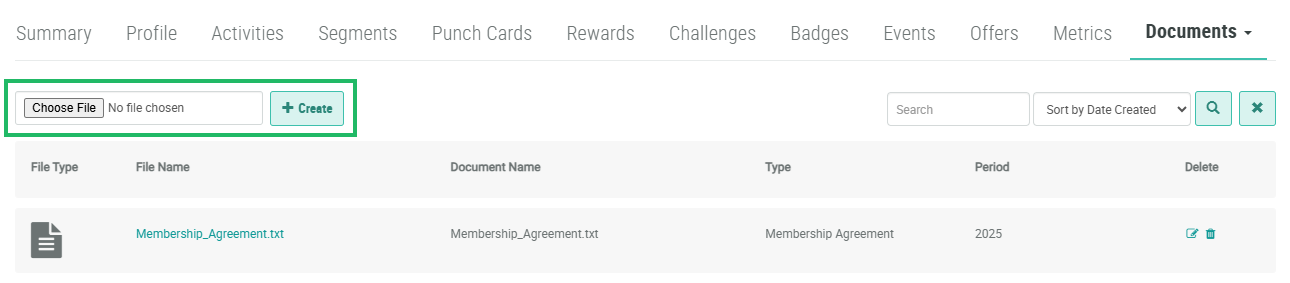
Select the Documents tab.
-
Click Choose File. Browse to and select the desired file, then click Open.
-
Click Create. The Edit Member Document pop-up window is displayed.
-
The Document Name field is automatically populated based on the filename. This field is disabled by default. To edit the Document Name, check Edit Internal Name to make the field editable. A confirmation dialog box is displayed; click OK. The Document Name must be unique and can not include any special characters or spaces; only numbers, letters, and underscores are allowed.
-
In the Type field, either select a previously-used Document type, or enter a new Document type.
-
In the Period field, either select a previously-used time period, or enter a new time period. For example, if you are uploading an annual membership agreement, enter the year the agreement covers.
-
Click Save.
